
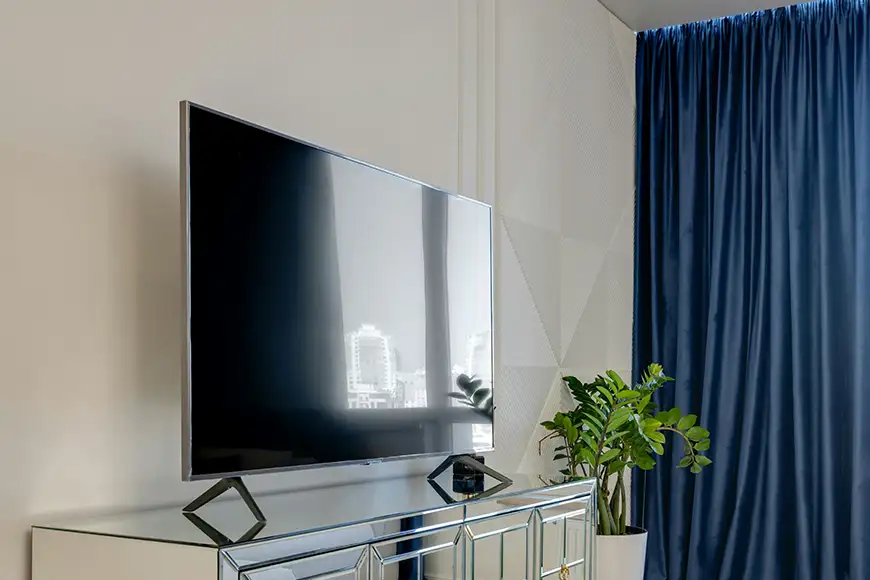
Experiencing a Smart TV screen flickering problem can quickly ruin your viewing experience. you thought you were all set and ready to watch the movie you have been waiting for, on a Saturday night, friends have taken seats and there you go, problem! Whether the screen is blinking constantly, dimming randomly, or showing unstable brightness, this obviously is concerning while your movie night already seems ruined. Let us hope that your Smart TV screen flickering issue is caused by some minor connection problem, or temporary glitch rather than serious hardware failure.
This guide will help you understand the possible causes and walk you through effective ways to fix the issue without unnecessary complexity… and still let you watch the movie tonight.
Why Smart TV Screens Flicker
Screen flickering on modern TVs is often linked to signal inconsistencies or display processing issues. Smart TVs rely on both hardware (like the panel and backlight) and software (like picture processing and apps). When something interrupts this balance, flickering can occur.
Brands such as Samsung, LG, and Sony all use advanced display technologies, but even these can experience flickering due to incorrect settings, HDMI issues, or firmware bugs.
Sometimes the flicker only appears while using certain apps or inputs, which indicates that the issue is not with the screen itself but with the signal or processing.
Step 1: Check Input Source and Cables
A very common cause of the Smart TV screen flickering issue is a poor or unstable signal from connected devices.
If you’re using HDMI devices such as a set-top box, gaming console, or streaming device, check the cable connection carefully. A loose or damaged HDMI cable can cause intermittent signal drops, which appear as flickering on the screen.
Try switching to a different HDMI port or using another cable. If the flickering disappears, the issue was likely related to the connection rather than the TV itself.
Step 2: Adjust Picture and Display Settings
Smart TVs include several picture-enhancing features, but sometimes these can cause display instability.
Settings like motion smoothing, dynamic contrast, or energy-saving modes can lead to flickering, especially in certain lighting conditions or content types. Reducing or turning off these features can often stabilize the display.
You can also try resetting the picture settings to default. This removes any misconfigured adjustments that may be causing the flicker.
Step 3: Update or Reset the TV Software
Software glitches are another major cause of flickering issues.
Smart TVs rely heavily on firmware, and outdated or buggy software can lead to display problems. Checking for updates and installing the latest firmware can resolve these issues quickly.
If the problem continues, performing a factory reset can help. This restores the TV to its original settings and eliminates any software-related conflicts.
When the Problem Is Not the TV
Sometimes, the flickering isn’t caused by the TV at all.
Streaming apps, external devices, or even power fluctuations can create the appearance of screen flickering. If the issue only occurs with a specific app or input, it’s worth testing other sources to confirm.
Power supply issues, such as unstable voltage, can also affect display performance. Using a surge protector or voltage stabilizer can help maintain consistent power.
When It Might Be a Hardware Issue
If the Smart TV screen flickering issue persists across all inputs and settings, the problem may be hardware-related. Oh no, now you can forget about the movie and start thinking about the repair budget, bad news but may be it is what it is, oops!
Backlight failure, loose internal connections, or panel issues can cause continuous flickering. These problems usually become more noticeable over time and may require professional repair.
Signs of hardware issues include flickering even on the TV menu, visible lines, or brightness fluctuations that don’t respond to settings changes.
Preventing Screen Flickering
To avoid future flickering problems, it’s important to maintain both your TV and its connections. Use high-quality cables, keep your TV software updated, and avoid extreme brightness or contrast settings.
Ensuring proper ventilation also helps prevent overheating, which can affect display performance over time.
Final word
The Smart TV screen flickering issue can be annoying, but it’s often easy to fix once you identify the cause. Whether it’s a loose cable, incorrect settings, or a software glitch, most problems can be resolved without professional help.
By taking a structured approach and testing each possibility, you can quickly restore a stable and enjoyable viewing experience.