
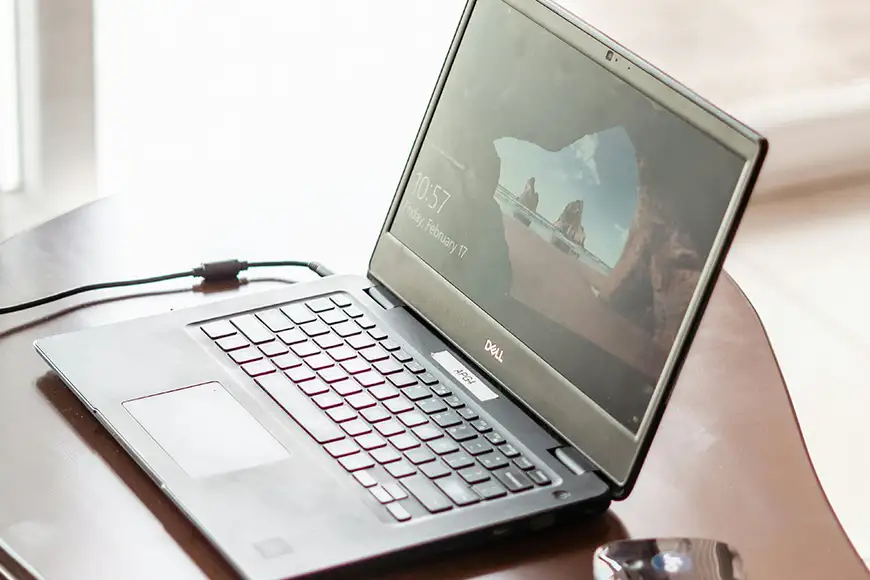
You are dealing with a laptop battery not charging. Your device works only while plugged in. Whether the battery is stuck at a certain percentage or not charging at all, or saying “plugged in, not charging” if i tell you not to get frustrated, isn’t enough i know, then lets quickly get to some practical steps to fix the laptop battery not charging issue and help you determine whether it’s a software glitch or a hardware problem.
We will be dealing with one or a combination of the following issues while fixing this problem.
- Faulty charger or power adapter
- Damaged charging port
- Battery wear or aging
- Incorrect power settings
- Driver or firmware issues
- Overheating problems
Buckle up and let’s dive into this
1. Check Power Adapter and Cable
Start with the basics:
- Ensure the charger is properly plugged in
- Inspect the cable for cuts or damage
- Try a different power outlet
If possible, use an original charger from your laptop brand to ensure best compatibility.
2. Inspect the Charging Port
A loose or damaged port can prevent charging.
- Check for dust or debris inside the port
- Gently clean using compressed air
- Ensure the charger fits securely
3. Perform a Power Reset
Power reset can fix temporary hardware glitches.
- Turn off the laptop
- Disconnect the charger
- Remove the battery (if removable)
- Hold the power button for 20–30 seconds
- Reconnect everything and turn it on
This resets internal power circuits.
4. Check Battery Status in Windows
Your system may be detecting battery issues.
- Click the battery icon in the taskbar
- Look for messages like “Plugged in, not charging”
This is common in Windows and may indicate charging limits or battery wear.
5. Disable Battery Charge Limit (If Enabled)
Some laptops limit charging to extend battery life.
- Open your laptop’s battery management software
- Disable any Battery Healthor Charge Limit settings
This allows the battery to charge to 100%.
6. Update or Reinstall Battery Drivers
Driver issues can cause the laptop battery not charging problem.
- Open Device Manager
- Expand Batteries
- Right-click Microsoft ACPI-Compliant Control Method Battery
- Select Uninstall device
- Restart your laptop
Windows will reinstall the driver automatically.
7. Check for Overheating
High temperatures can stop charging to protect the battery.
- Ensure proper ventilation
- Clean air vents and fans
- Avoid using the laptop on soft surfaces
Let the laptop cool down before charging again.
8. Update BIOS and System Firmware
Outdated firmware can affect battery performance.
- Visit your laptop manufacturer’s website
- Download the latest BIOS update
- Follow installation instructions carefully
This can fix compatibility issues between hardware and software.
9. Test with Another Charger or Battery
To identify the faulty component:
- Try a different compatible charger
- Use another battery (if removable)
If the issue persists, the motherboard or charging circuit may be affected.
10. Replace the Battery (If Necessary)
Batteries degrade over time.
- If your battery is old or worn out, replacement may be required
- Check battery health using system tools or third-party apps
A failing battery is a common reason for the laptop battery not charging issue.
Tips to Maintain Battery Health
- Avoid overcharging for long periods
- Use original or certified chargers
- Keep your laptop cool
- Perform regular battery calibration
- Update system software regularly
The laptop battery not charging issue can be caused by a faulty charger, bad power outlet or more complex hardware problems. In most cases, a combination of checking hardware, updating drivers, and adjusting settings will restore normal charging. If not, replacing the battery or seeking professional help may be the best solution.