
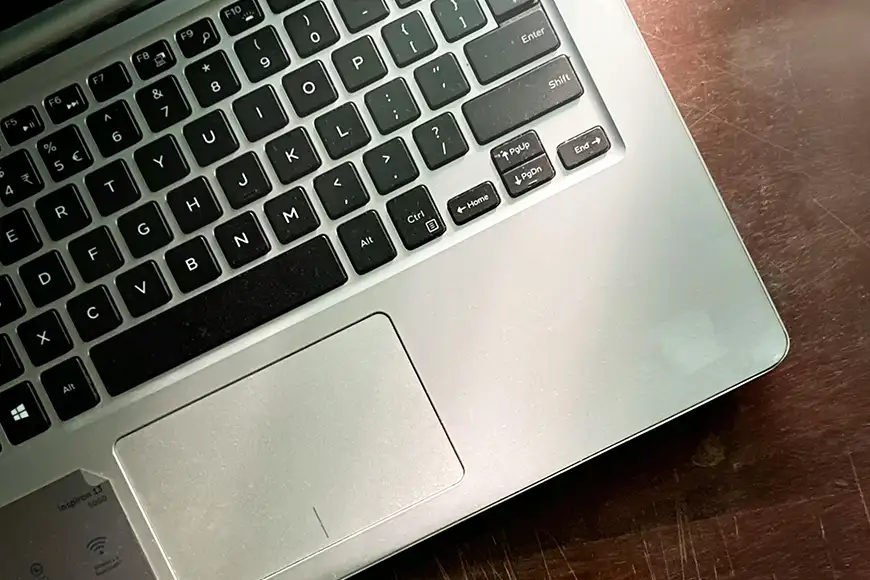
Your laptop not turning on – can be alarming—especially if you rely on your device for work, studies, or daily tasks. As a web developer, I have had to deal with such issues quite often, these machines sometimes just go to deep sleep or even die. Many of these issues can be diagnosed and fixed at home without needing immediate professional repair. Sometimes the laptop shows no signs of life, while in other cases the lights turn on but the screen remains black. The problem can be caused by something simple like a drained battery or something more complex like hardware failure. In this guide, I’ll walk you through step-by-step solutions to help you identify the cause and get your laptop powered on again.
1. Check the Power Source
Start with the basics:
- Make sure the charger is properly plugged in
- Try a different wall socket
- Check if the charging LED turns on
Sometimes the issue is not the laptop itself but a faulty power outlet or loose connection.
2. Inspect the Charger and Cable
A damaged charger is one of the most common reasons for a laptop not turning on problem.
- Look for cuts or bends in the cable
- Check if the adapter feels unusually hot
- Try using another compatible charger if available
If the charger is faulty, replacing it may immediately fix the issue.
3. Perform a Power Reset
A power reset can fix temporary electrical glitches.
Steps:
- Disconnect the charger
- Remove the battery (if removable)
- Press and hold the power button for 20–30 seconds
- Reconnect power and try turning it on
This clears residual charge from the system.
4. Check the Battery
If your laptop runs only on battery:
- Remove the battery and plug in the charger
- Try turning the laptop on without the battery
If it works, your battery may be faulty and needs replacement.
5. Look for Signs of Power
Observe carefully:
- Do any LED lights turn on?
- Do you hear fan noise?
- Does the keyboard light up?
If there are no signs at all, the issue is likely power-related. If lights are on but nothing displays, it could be a screen or internal hardware issue.
6. Test the Display
Sometimes the laptop is on, but the screen is not working.
- Connect your laptop to an external monitor
- Press display toggle keys (Fn + display key)
If the external display works, your laptop screen may be faulty.
7. Remove External Devices
External devices can sometimes prevent startup.
- Disconnect USB drives, external hard disks, and accessories
- Try turning the laptop on again
This helps rule out peripheral conflicts.
8. Check for Overheating or Damage
If your laptop was recently overheated or exposed to moisture:
- Let it cool down completely
- Avoid turning it on immediately after liquid exposure
Overheating or internal damage can stop the laptop from powering on.
9. Reseat RAM (Advanced Step)
If you are comfortable opening your laptop:
- Remove the back panel
- Take out the RAM modules
- Reinsert them properly
Loose RAM can prevent the system from booting.
10. Motherboard or Power Circuit Issue
If none of the above steps work, the problem may be:
- Faulty motherboard
- Damaged power IC
- Internal short circuit
At this stage, professional repair is usually required.
Conclusion
A laptop not turning on issue can be caused by simple problems like a faulty charger or more serious hardware faults. By following the steps above—from checking the power source to testing hardware—you can identify the root cause and often fix the issue yourself.
Start with basic troubleshooting before moving to advanced steps, and in most cases, your laptop will be back up and running without needing costly repairs.